
Overview
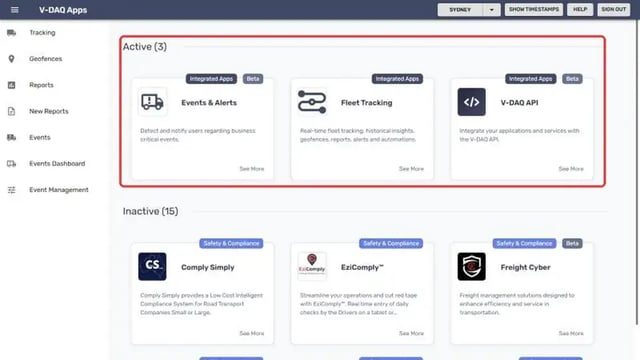
The Apps page lists the V-DAQ features and partner integrations available for your account. Active apps are already turned on. Inactive apps are available but not enabled. Each app shows a category, such as Integrated Apps, Safety & Compliance, Job Management or Finance.
- Integrated Apps are V-DAQ modules, such as Fleet Tracking, Events & Alerts and the V-DAQ API.
- Partner apps connect V-DAQ to other software, such as compliance, maintenance or job management systems. Once enabled, tracking data can be shared with that system automatically.
Before You Begin
- You need access to the V-DAQ Platform.
- Some partner apps need an account with that partner before V-DAQ can connect them.
Step 1 – Open Apps
- Select Apps in the left menu.
- Your enabled apps are listed under Active, with a count.
Step 2 – Browse available apps
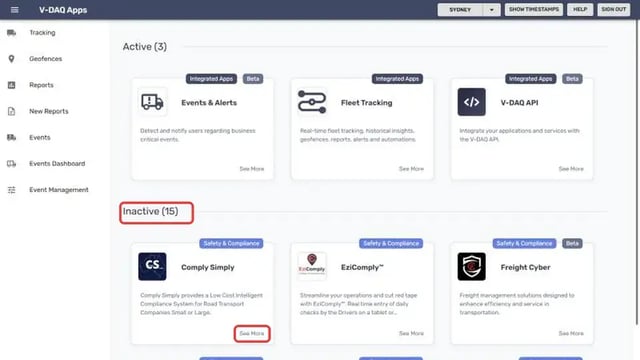
- Scroll down to Inactive to see apps you can add.
- Select See More on an app to read about it.
Step 3 – Request an app
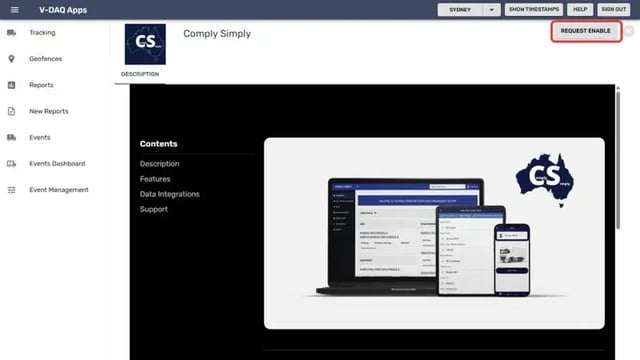
- On the app's page, read the Description.
- Select REQUEST ENABLE to ask V-DAQ to turn the app on for your account.
V-DAQ will contact you if anything else is needed to set up the app.
Related Articles
Need More Help?
If you're still experiencing issues:
Phone: (02) 4204 8472
Email: support@v-daq.com.au