
Overview
The Services tab in Account lists the V-DAQ vehicle services on your account, one row per vehicle. Each row shows the Service Type, Vehicle Registration, Primary Label, Device Serial and Sensor Serial, along with the invoice and enrolment details for that service. Ended services are hidden by default.
Before You Begin
- You need access to the V-DAQ Platform.
Important
The Services tab shows services for powered telematics devices. Services for battery-powered trackers and video telematics are not listed here.
Step 1 – Open Services
- Select Account in the left menu.
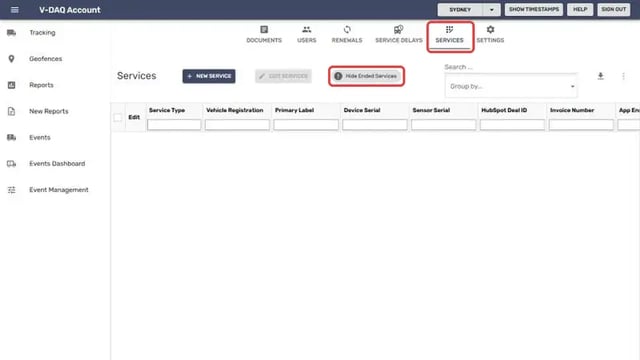
- Select the Services tab.
- To include services that have ended, select Hide Ended Services to turn the filter off.
Step 2 – Find a service
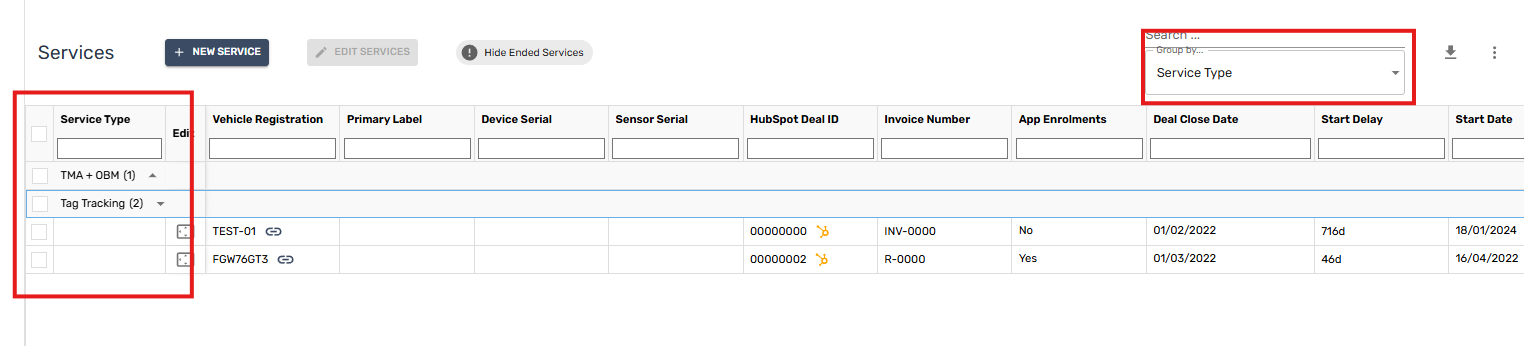
- Type in Search to find a service by registration, label or serial number.
- Type in the filter box under a column heading to filter that column.
- Use Group by to group the list, for example by Service Type.
Step 3 – Download the list
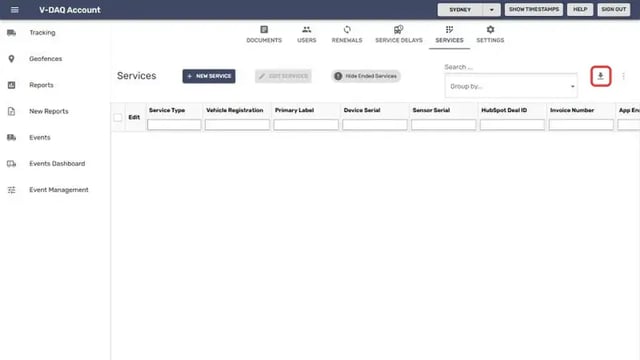
- Select the download icon at the top right of the list.
- The list downloads as a CSV file you can open in Excel.
Related Articles
Need More Help?
If you're still experiencing issues:
Phone: (02) 4204 8472
Email: support@v-daq.com.au