
Overview
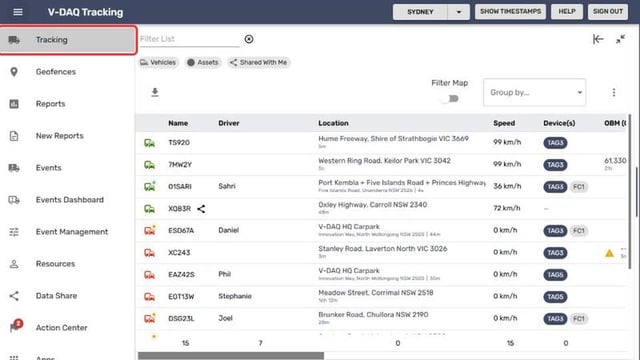
The Tracking page shows every vehicle and asset in your account. The table on the left lists each one with its location, speed and status, and the map on the right shows where they are now.
What do I need before I use the Tracking page?
Before you start, make sure you have:
- Access to the V-DAQ platform.
- At least one vehicle or asset in your account.
How do I open the Tracking page?
Select Tracking in the side menu.
What do the controls on the Tracking page do?
The Tracking page controls let you search, filter, group and export your vehicles and assets, and change how the table and map display. The table and map update automatically as new location and status data is received from your vehicles and assets.
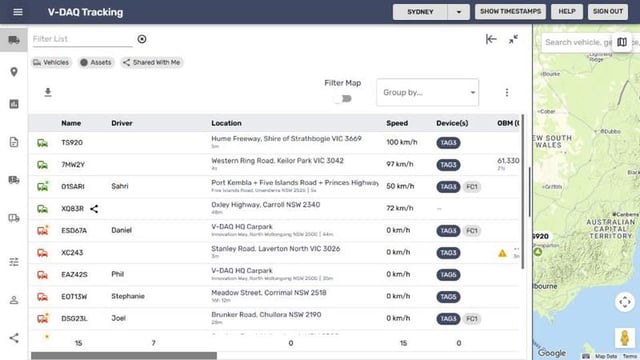
| Control | What it does |
|---|---|
| Filter List | Search by name, registration or label. Select the cross to clear it. |
| Vehicles, Assets, Shared With Me | Show or hide each type in both the table and the map. |
| Download as CSV | Exports the full list of vehicles and assets, not just the filtered view. |
| Filter Map | Hides closed groups from the map. Only works once a group is applied. |
| Group by... | Groups vehicles by a label, such as Fleet Number or Driver. |
| Open Table Preferences (three dots) | Choose which columns show in the table. |
| Expand and Close (top right) | Widen the table or close it to give the map more room. |
| Map Controls (map icon) | Change marker size, map style, theme and overlays. |
How do I see a vehicle's trips and timeline?
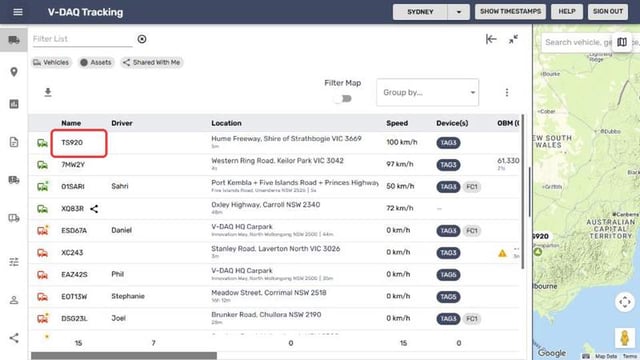
Select any vehicle name in the table to open its Trips and Timeline tabs.
Related Articles
- View a trip
- View the vehicle timeline
- Edit the tracking table (show hidden labels)
- Edit the map settings
Who do I contact if I still need help?
If you need further assistance, contact the V-DAQ support team:
Phone: (02) 4204 8472
Email: support@v-daq.com.au