
Overview
The Documents tab in Account holds the documents for your account, including V-DAQ agreements, packing slips, V-DAQ certificates and installation records. You can view and download any of them from here.
Before You Begin
- You need access to the V-DAQ Platform.
Important
The Only Pending Review filter is on by default, so only documents waiting for your signature show at first. Turn it off to see all documents.
Step 1 – Open Documents
Select Account in the left menu. The Documents tab opens.
Select Only Pending Review to turn the filter off and show all documents.
Select Show Cancelled if you also need cancelled documents.
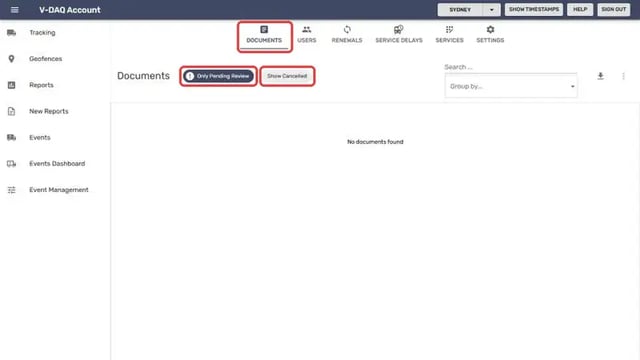
Step 2 – Find the document
Type in Search to find a document by name, vehicle or type.Use Group by to group the list, for example by document type.
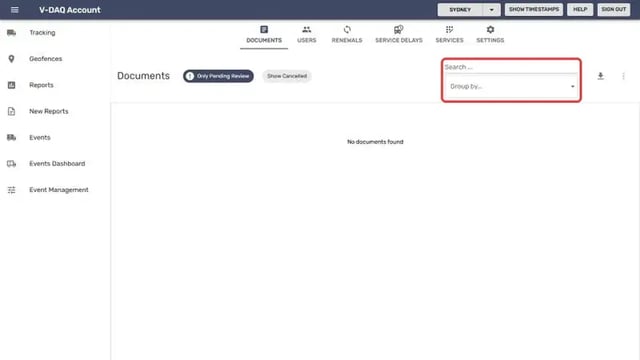
Step 3 – Download the document
Select the document to open it.Select the download option to save a PDF copy to your computer.
[Screenshot needed: a document row and its download option. The test accounts have no documents, so this step couldn't be captured.]
Note: The download icon at the top right of the list downloads the list itself as a CSV file, not the documents.
Related Articles
Need More Help?
If you're still experiencing issues:
Phone: (02) 4204 8472
Email: support@v-daq.com.au