
Overview
The Timeline tab lists a vehicle's activity in time order. Some rows are a single moment, such as ignition on or a geofence entry. Other rows group activity over an interval you choose.
Before You Begin
Before you start, make sure you have:
- Access to the V-DAQ platform.
- At least one vehicle or asset in your account.
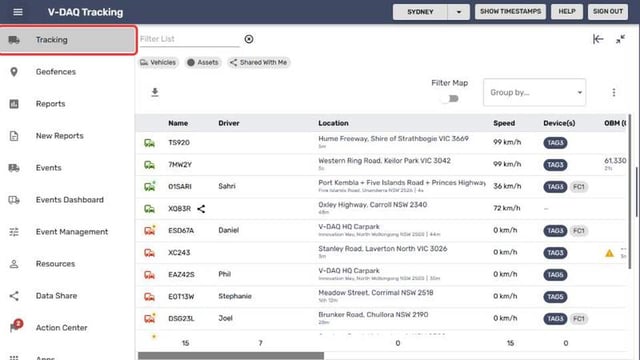
Step 1 – Open the Tracking Page
Select Tracking in the side menu.
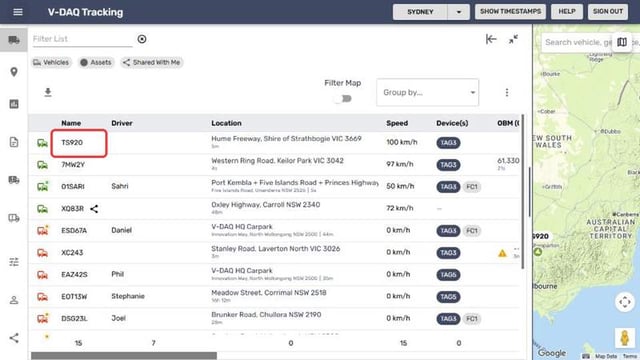
Step 2 – Select the Vehicle
Select the vehicle name in the table.
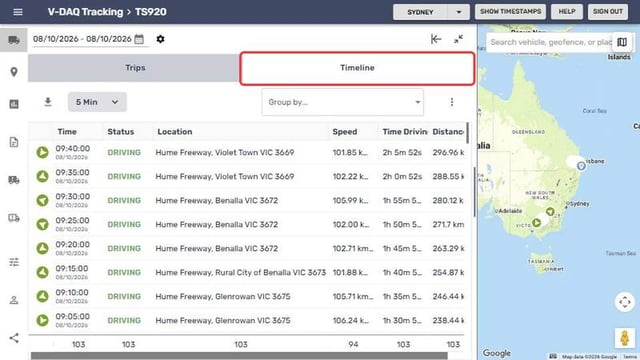
Step 3 – Open the Timeline Tab
Select the Timeline tab.
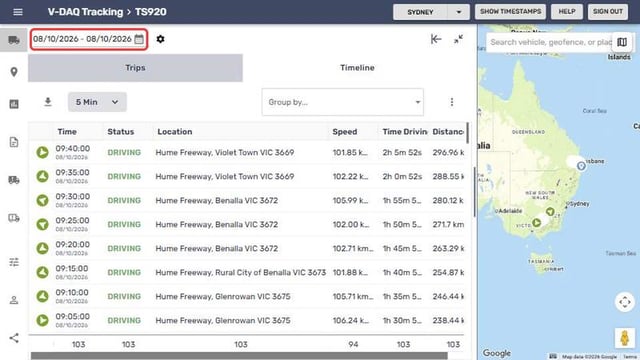
Step 4 – Choose a Date Range
Select the date field and choose a date range, then select Search dates.
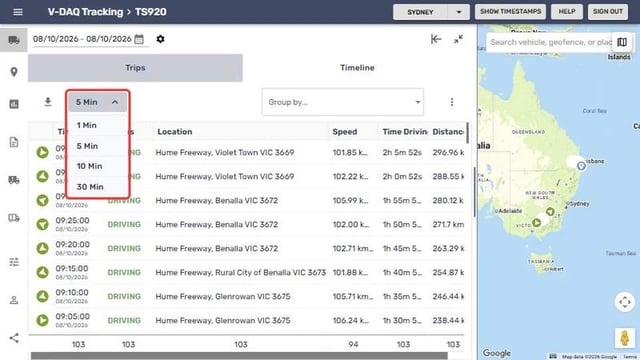
Step 5 – Set the Interval
Select the interval drop-down (default 5 Min) and choose 1 Min, 5 Min, 10 Min or 30 Min.
Step 6 – Read the Rows
Each row shows Time, Status, Location, Speed, Time Driving and Distance Driven.
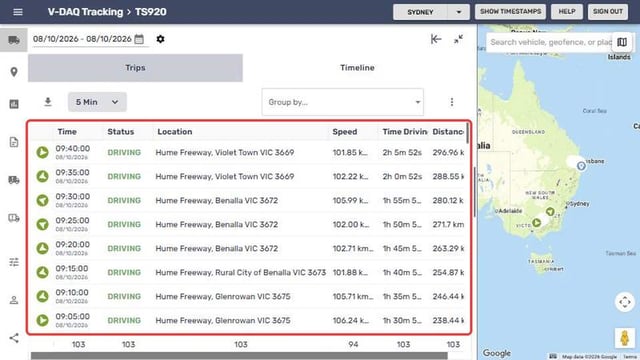
- If the vehicle moved at all in an interval, the row shows Driving. Idle means it was stationary the whole time.
- Battery-powered devices show movement start and stop instead of ignition, plus Activity Duration and Position Accuracy.
- Vehicles with OBM also show gross and axle mass.
Step 7 – Group or Change Columns
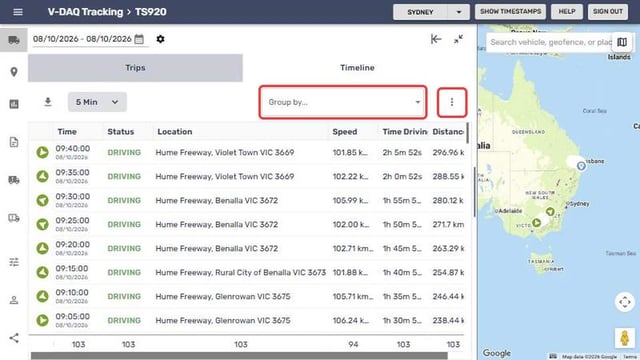
Use Group by... above the table to group rows, and the three dots (Table Preferences) to choose columns.
Related Articles
Need More Help?
If you're still experiencing issues:
Phone: (02) 4204 8472
Email: support@v-daq.com.au