
How do I download a vehicle's Timeline as a CSV file?
You can download the rows on a vehicle's Timeline tab as a CSV file. The file uses the date range, interval and columns you have on screen.
What do I need before I download the Timeline?
Before you start, make sure you have:
- Access to the V-DAQ platform.
- At least one vehicle or asset in your account.
- The vehicle's Timeline tab open. See View the vehicle timeline.
How do I export the Timeline to CSV?
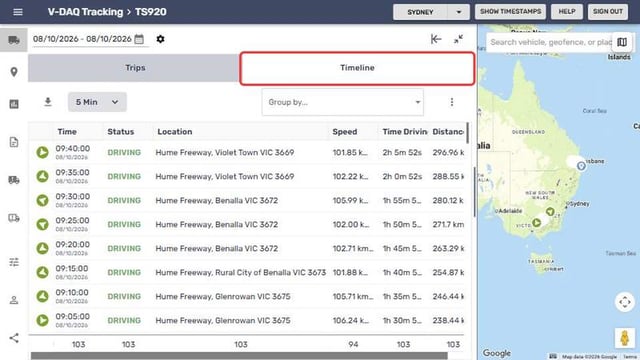
Step 1 – Open the Timeline Tab
Open the vehicle and select the Timeline tab.
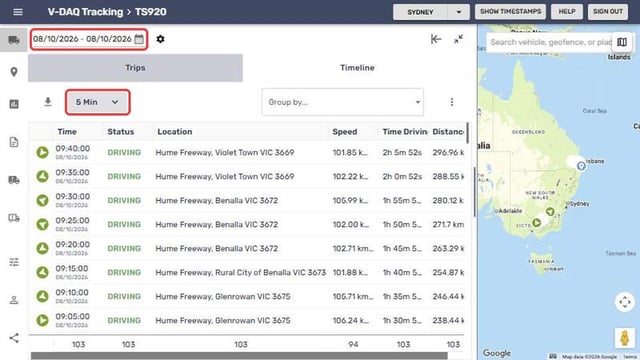
Step 2 – Set the Date Range and Interval
Set the date range and interval you want in the export.
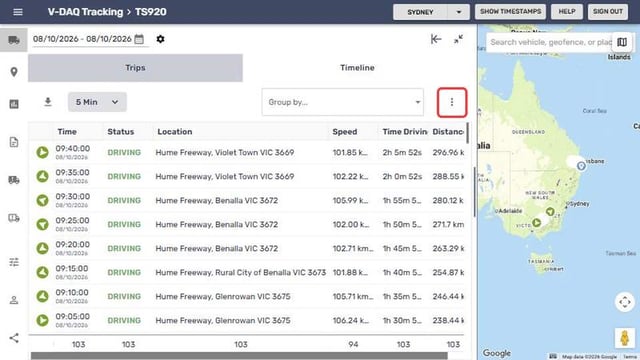
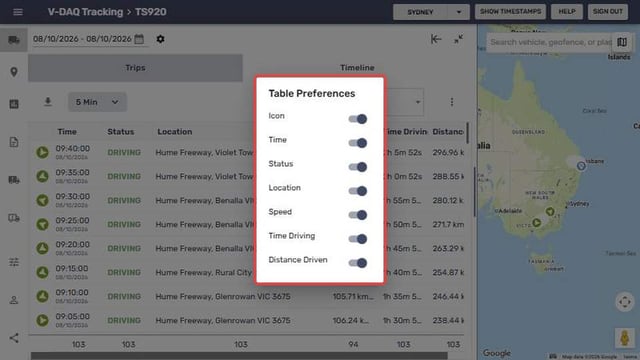
Step 3 – Choose the Columns
Select the three dots (Table Preferences) and turn on any columns you want included.
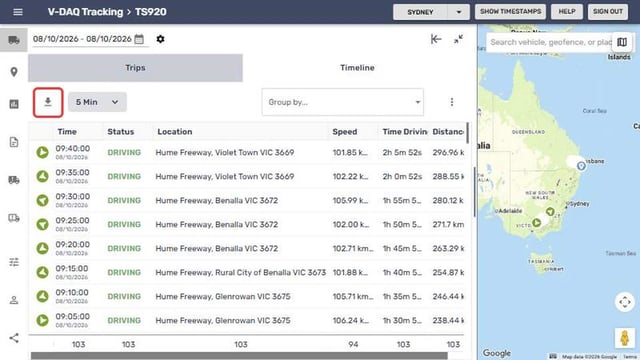
Step 4 – Download the File
Select Download as CSV (the download icon above the table).
Step 5 – Open the File
Open the file from your browser's downloads.
Note: For a formatted, shareable version, build a Vehicle Timeline report from Reports instead.
Where can I find related articles?
Who do I contact if I still need help?
If you're still experiencing issues:
Phone: (02) 4204 8472
Email: support@v-daq.com.au