
Overview
You can group the Tracking table by any label, such as Fleet Number, Plant Number or Driver. With Filter Map turned on, the map shows only the groups you have open.
Before You Begin
Before you start, make sure you have:
- Access to the V-DAQ platform.
- At least one vehicle or asset in your account.
- Labels set up and assigned to your vehicles.
Step 1 – Open the Tracking Page
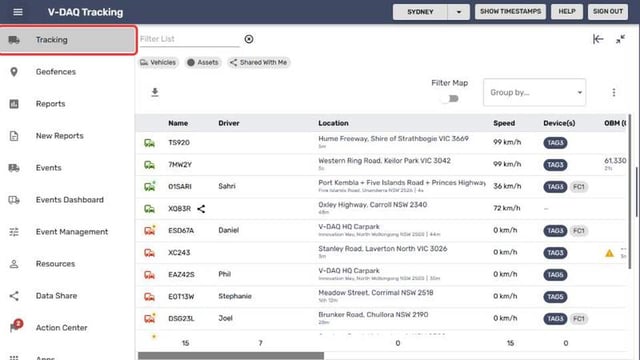
Select Tracking in the side menu.
Step 2 – Open Group By
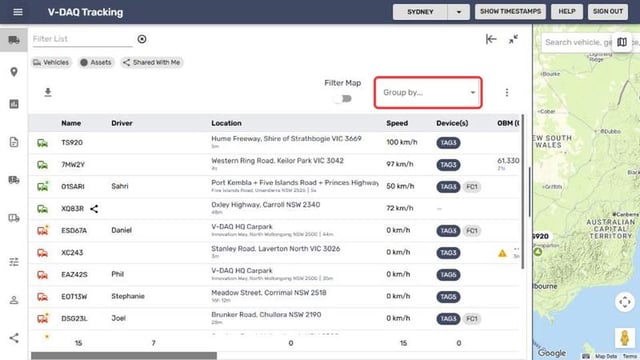
Select the Group by... drop-down above the table.
Step 3 – Choose a Label
Choose a label, for example Fleet Number. Select a group heading to expand or collapse it.
Step 4 – Filter the Map
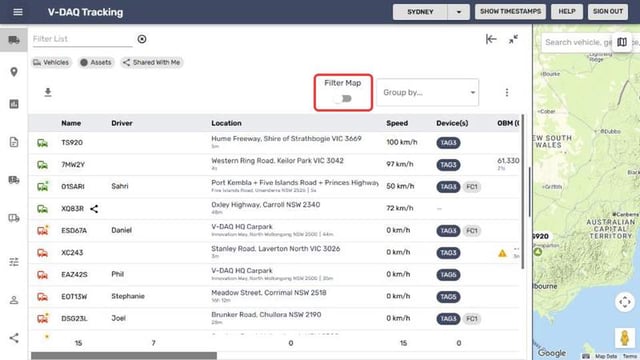
Turn on Filter Map to show only open groups on the map. Collapsed groups are hidden.
Step 5 – Remove Grouping
Open Group by... and clear the selection.
Related Articles
Need More Help?
If you're still experiencing issues:
Phone: (02) 4204 8472
Email: support@v-daq.com.au