
Overview
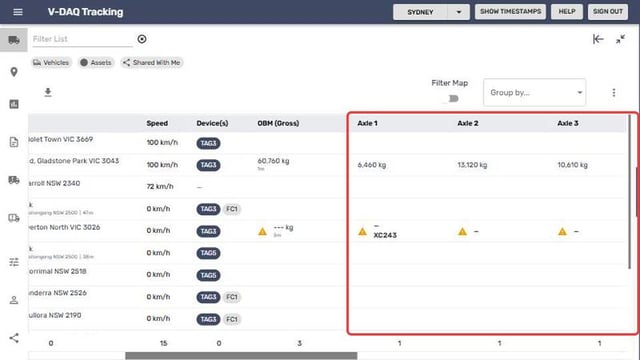
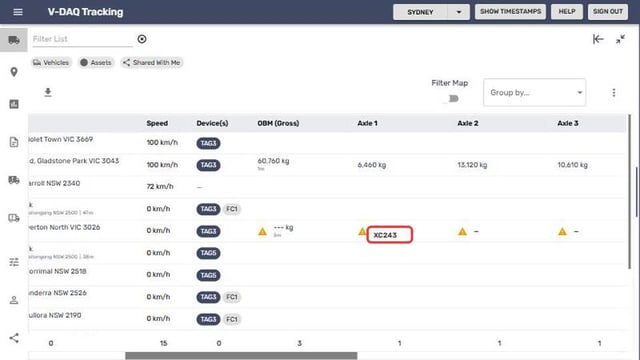
For vehicles fitted with an on-board mass (OBM) system, the platform shows gross mass and each axle group. The asset name under each axle value shows which trailer or dolly is coupled in that position.
Before You Begin
Before you start, make sure you have:
- Access to the V-DAQ platform.
- At least one vehicle or asset in your account.
- A vehicle fitted with a supported OBM system.
On the Tracking Table
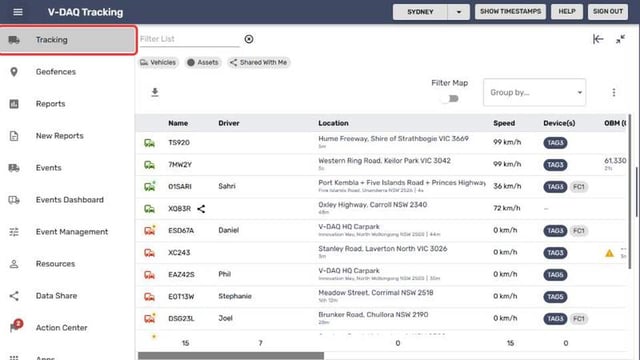
Step 1 – Open the Tracking Page
Select Tracking in the side menu.
Step 2 – Find the Vehicle
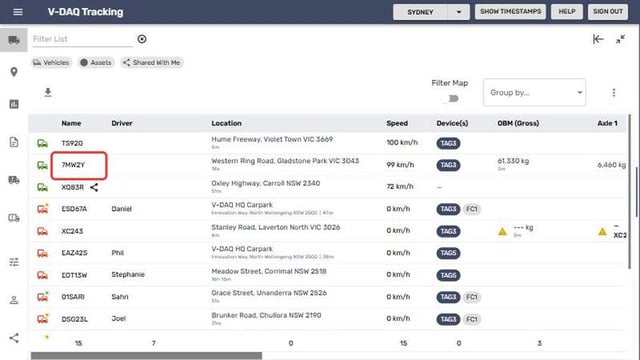
Find the vehicle in the table.
Step 3 – Read the Gross Mass
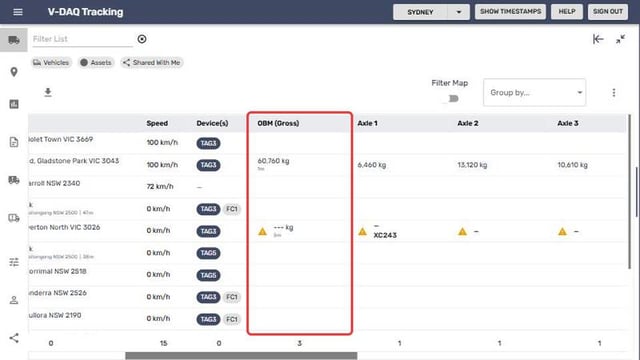
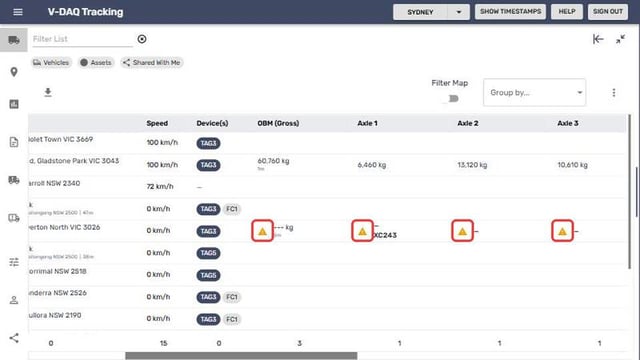
Read the OBM (Gross) column for the latest gross mass and how long ago it was received. Scroll the table right if the column is off screen.
Step 4 – Read Each Axle Group
Read the Axle 1 to Axle 5 columns for each axle group, front to back.
Step 5 – Check the Combination
Check the asset name under each axle value. This is the trailer or dolly coupled in that position, so the row shows the full combination.
For a Trip
Step 6 – Select a Trip
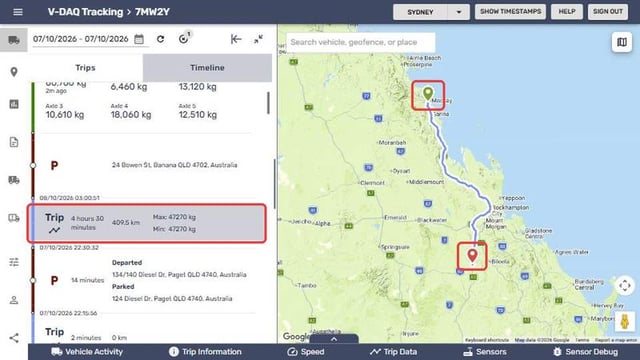
Open the vehicle and select a trip on the Trips tab.
Step 7 – Open the Data Panel
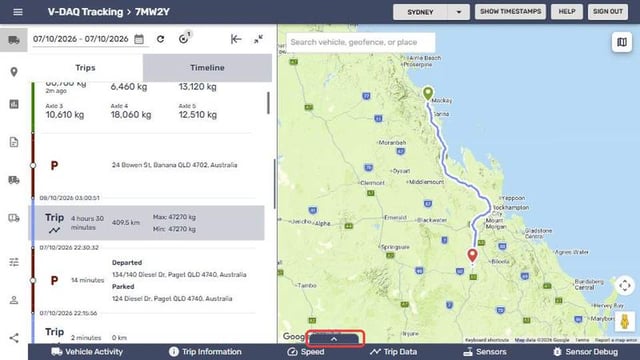
Select the up-arrow tab at the bottom of the map.
Step 8 – Open the Sensors Graph
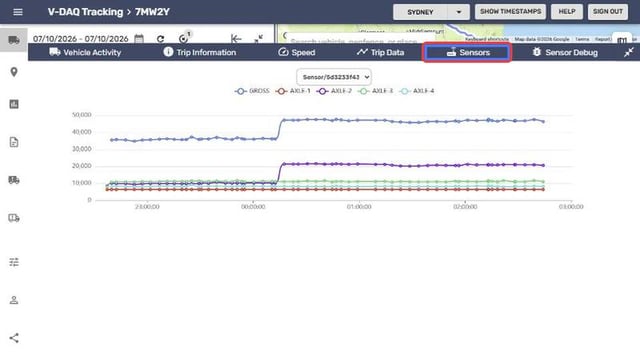
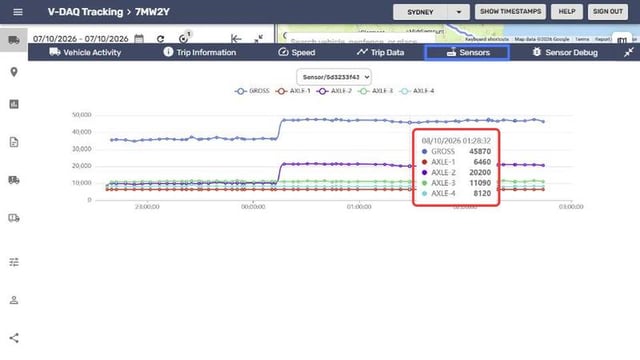
Select Sensors to graph gross mass and each axle group over the trip. If the vehicle has more than one sensor, choose it from the drop-down above the graph.
Step 9 – Check a Reading
Hover over the graph to see the time and the reading for Gross and each axle.
Step 10 – See the Heaviest and Lightest Reading
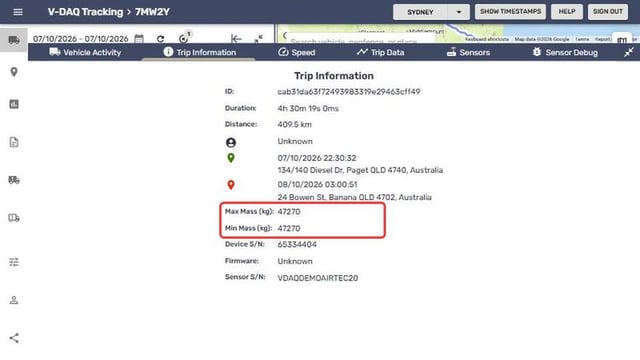
Select Trip Information to see Max Mass and Min Mass for the trip.
Status Icons
| Icon (Right Weigh Wireless OBM) | Meaning |
|---|---|
| Connected icon | Sensor currently connected. |
| Parked icon | Connected and parked. |
| Error icon | At least one axle sensor has an error. |
| A dash (-) in the value | Other OBM brands: at least one axle sensor has an error. |
Related Articles
Need More Help?
If you're still experiencing issues:
Phone: (02) 4204 8472
Email: support@v-daq.com.au