
Overview
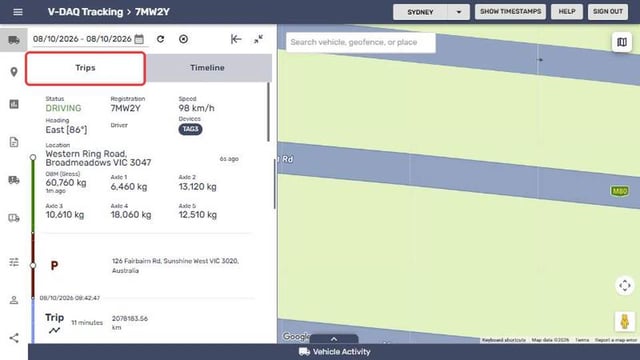
A trip runs from ignition on to ignition off. The Trips tab lists every trip for a vehicle in the date range you choose, and selecting a trip draws its route on the map.
Before You Begin
Before you start, make sure you have:
- Access to the V-DAQ platform.
- At least one vehicle or asset in your account.
- A vehicle fitted with a powered telematics device. Trip view is not available for battery-powered devices.
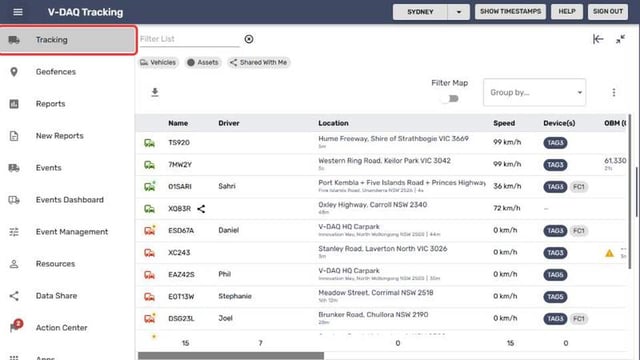
Step 1 – Open the Tracking Page
Select Tracking in the side menu.
Step 2 – Select the Vehicle
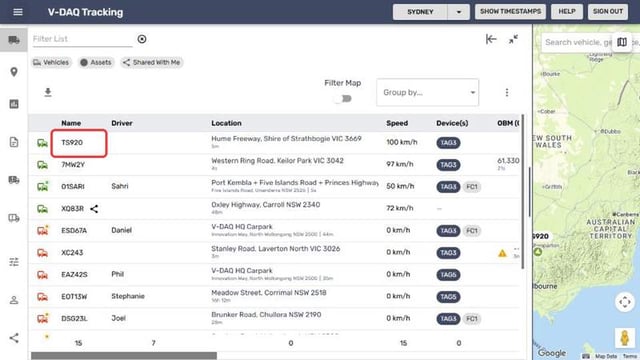
In the table, select the vehicle name. The Trips tab opens.
Step 3 – Choose a Date Range
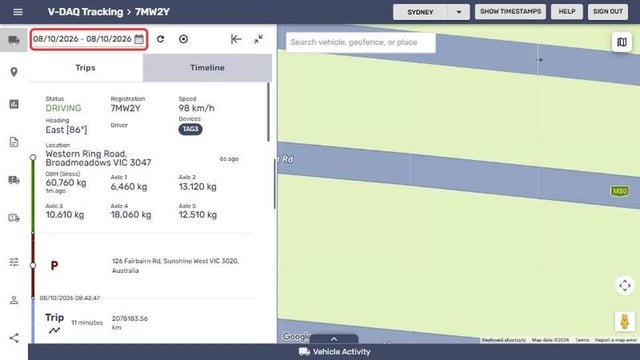
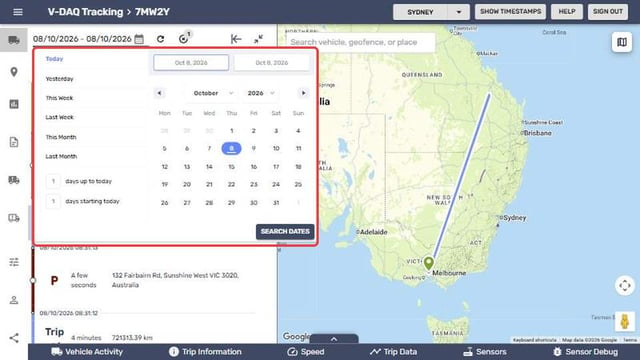
Select the date field at the top. Choose a date range or a preset such as Yesterday, then select Search dates.
Step 4 – Refresh the Trip List
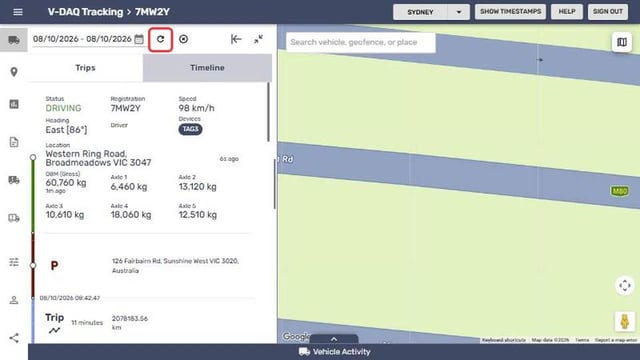
Select Refresh trips to load the latest data.
Step 5 – Select a Trip
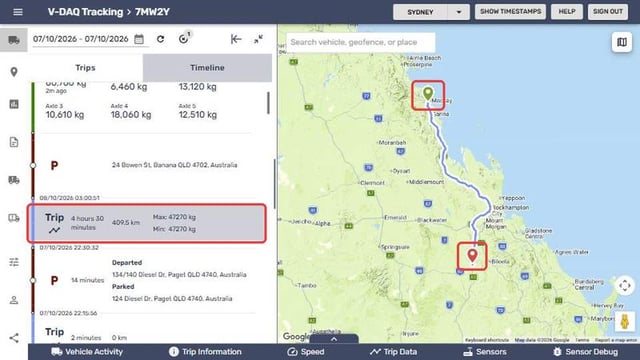
Select a trip in the list. The route draws on the map with a green start marker and a red end marker.
Step 6 – Compare Trips
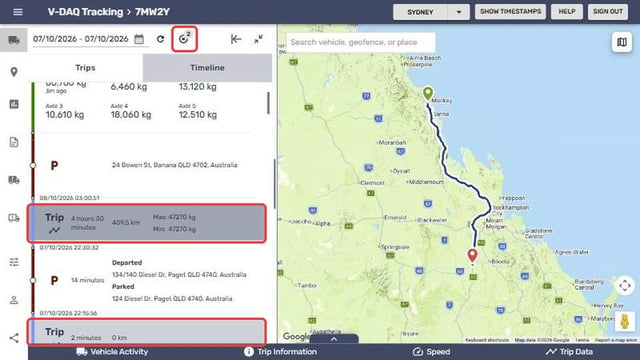
Select more trips to add them to the map. The counter beside the clear button shows how many are selected.
Step 7 – Clear the Map
Select a trip again to remove it, or select Clear Selected Trips to remove them all.
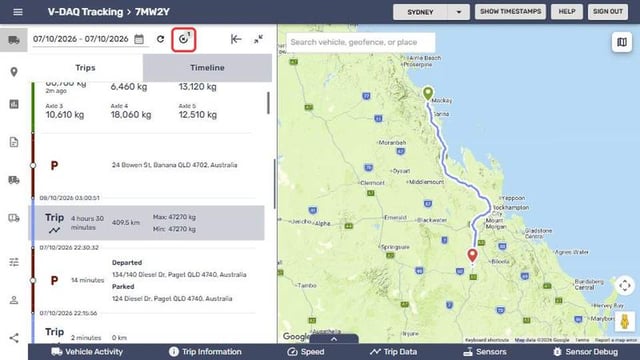
Note: Trips are listed newest first. A trip in progress shows as a live trip at the top of the list.
Related Articles
Need More Help?
If you're still experiencing issues:
Phone: (02) 4204 8472
Email: support@v-daq.com.au