
Overview
This article covers how to create an API key in the V-DAQ API app for the Nuonic integration
API keys don't expire. The only way to stop an API key from working is to delete it. Store it securely and share it only with the integration partner that needs
Before you begin
The V-DAQ API app must be enabled on your account. Only Platform users can create API keys. V-DAQ admin users can't create API keys, for security reasons.
To enable the app:
- Go to Apps and click the V-DAQ API app tile
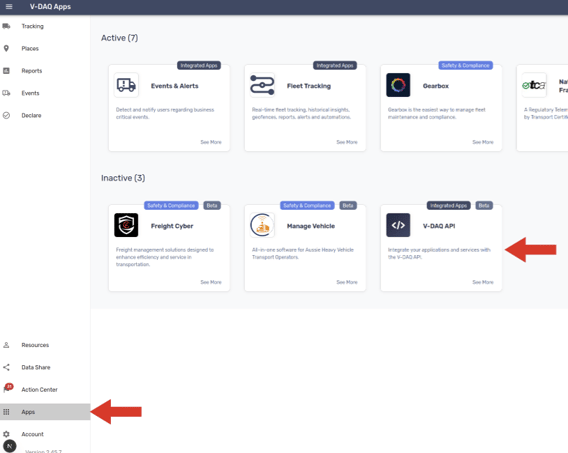
- Click Request enable on the app detail screen (Top Right)

- Wait for the V-DAQ Customer Success team to approve the request
Step 1 – Open the V-DAQ API app
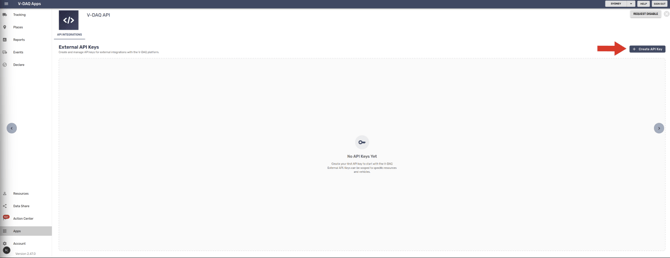
Go to Apps and click the V-DAQ API app tile. The key management page opens.
Click Create API Key.
Step 2 – Name the API key
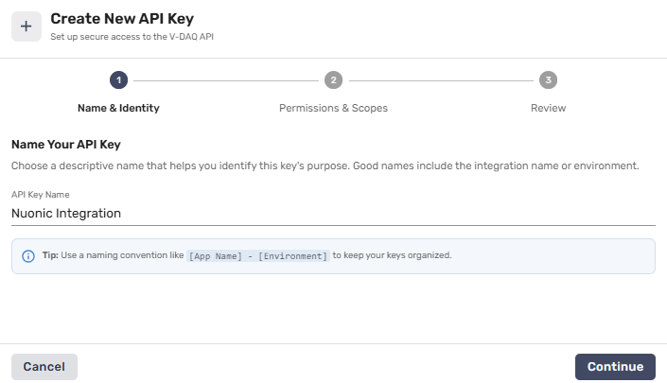
Enter a name for the API key. Use a name that identifies the integration, for example the partner or system that will use it.
Click Continue.
Step 3 – Set permissions and scopes
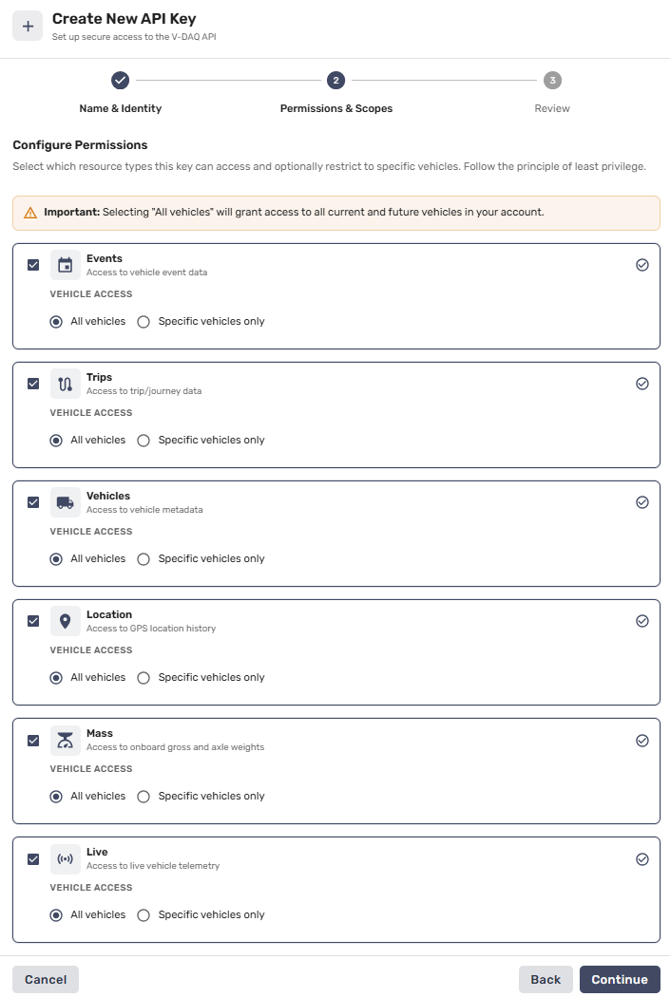
Turn on the Events, Trips, Vehicles, Location, Mass and Live scope types.
When you turn on a Scope type, two options show:
-
All Vehicles, which gives access to every vehicle on your account.
-
Specific vehicles, which shows a table. Click each vehicle you want the API key to access.
Note: All Vehicles includes vehicles you add to your account in the future.
Click Continue.
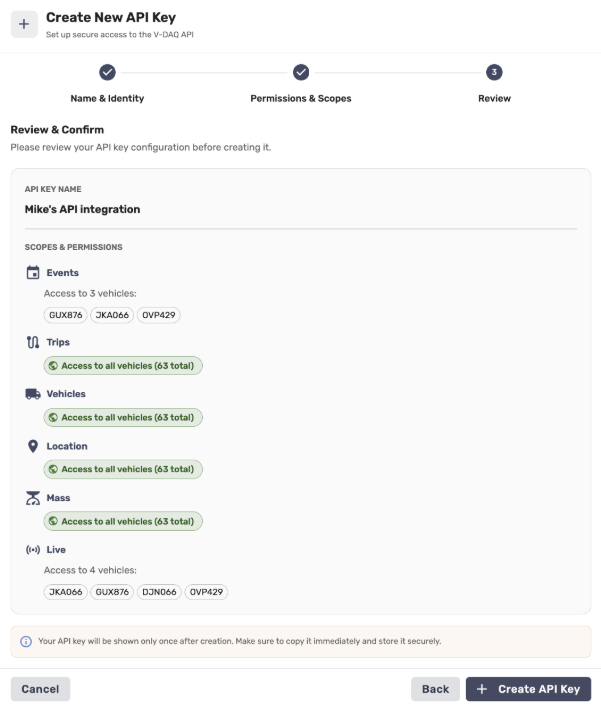
Step 4 – Review and create
Check the permissions on the review screen.
Click Create API Key.
Step 5 – Copy and store the API key
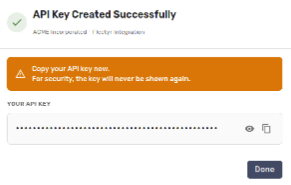
The new API key shows on screen. Copy it and store it securely.
This is the only time the API key is shown. V-DAQ can't retrieve it for you. If you lose it, delete the API key and create a new one.
Need More Help?
If you're still experiencing issues:
Contact the V-DAQ Support Team: (02) 4204 8472
Email: support@v-daq.com.au