
Overview
A label is a type of identifier your business uses for vehicles, such as Fleet Number, Plant Number or Driver. You create the label once in Resources > Labels, then give each vehicle its own value for it. Changes to a label apply to every vehicle that uses it.
Before You Begin
- You need access to the V-DAQ Platform.
- Decide which label should be your primary label, if any.
Important
Your account can have one Primary Label. The primary label is the main identifier for your vehicles, for example Fleet Number. Each vehicle can carry up to five labels.
Step 1 – Open the Labels tab
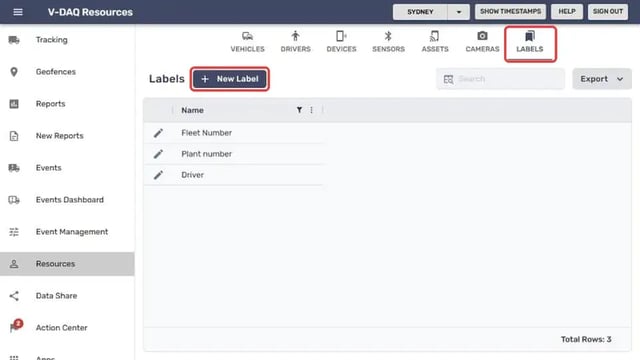
Select Resources in the left menu.Select the Labels tab, then select New Label.
Step 2 – Name the label
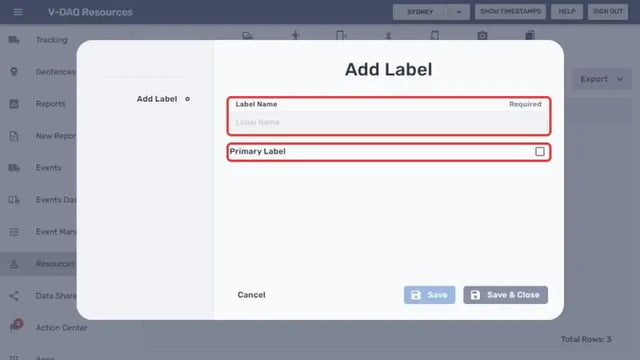
Enter the Label Name, for example Fleet Number.Tick Primary Label if this should be your account's main identifier.
Select Save & Close.
Step 3 – Edit a label
On the Labels tab, select the pencil icon next to the label.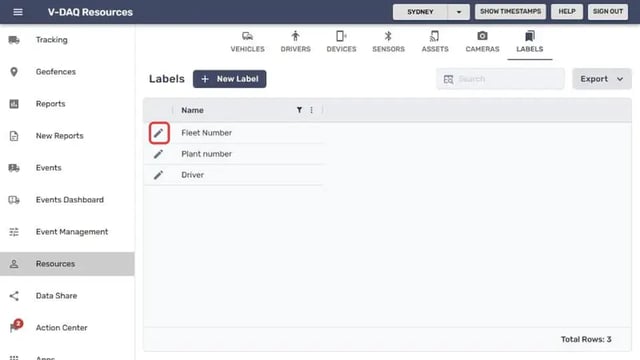
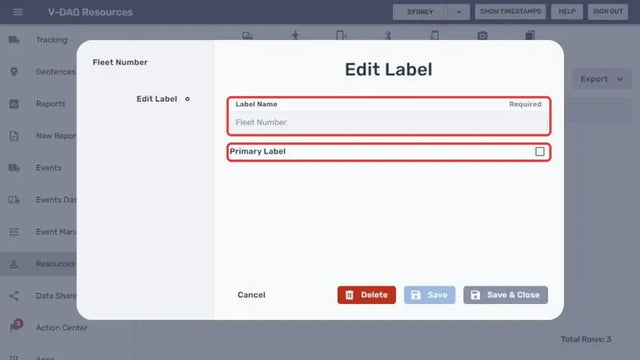
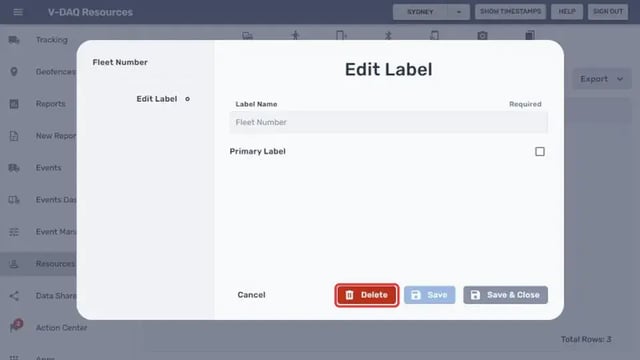
Change the Label Name, or tick or untick Primary Label.
Select Save & Close.
Step 4 – Remove a label
Open the label as in Step 3.Select Delete.
Important
Deleting a label removes it from every vehicle that uses it.
Related Articles
Need More Help?
If you're still experiencing issues:
Phone: (02) 4204 8472
Email: support@v-daq.com.au